GOM Tools for Shopify
Tracking events
Send form submissions, WhatsApp clicks and other actions as events to Google Analytics, Google Ads, Meta and Tag Manager.
An event tells an advertising or analytics platform that something happened on your store: someone sent a form, opened WhatsApp or clicked a button. That way your campaigns learn from real conversions.
Events start on the Growth plan (5 events). Plus includes 15 and clicks on page elements; Pro and Scale, unlimited events.
First: your pixels#
In Tracking events → Pixels you enter your tag IDs once: Google Analytics 4 (G-XXXXXXXXXX), Google Ads (AW-123456789), Meta and Google Tag Manager. They serve every event.
If your theme or a Shopify channel already installs one of those pixels, leave it empty here: installing it twice counts everything twice.
Create an event#
Click Create event. It has four tabs:
| Tab | What you set up |
|---|---|
| Settings | The name, the event name the platforms receive (for example generate_lead), when it fires and how many times. |
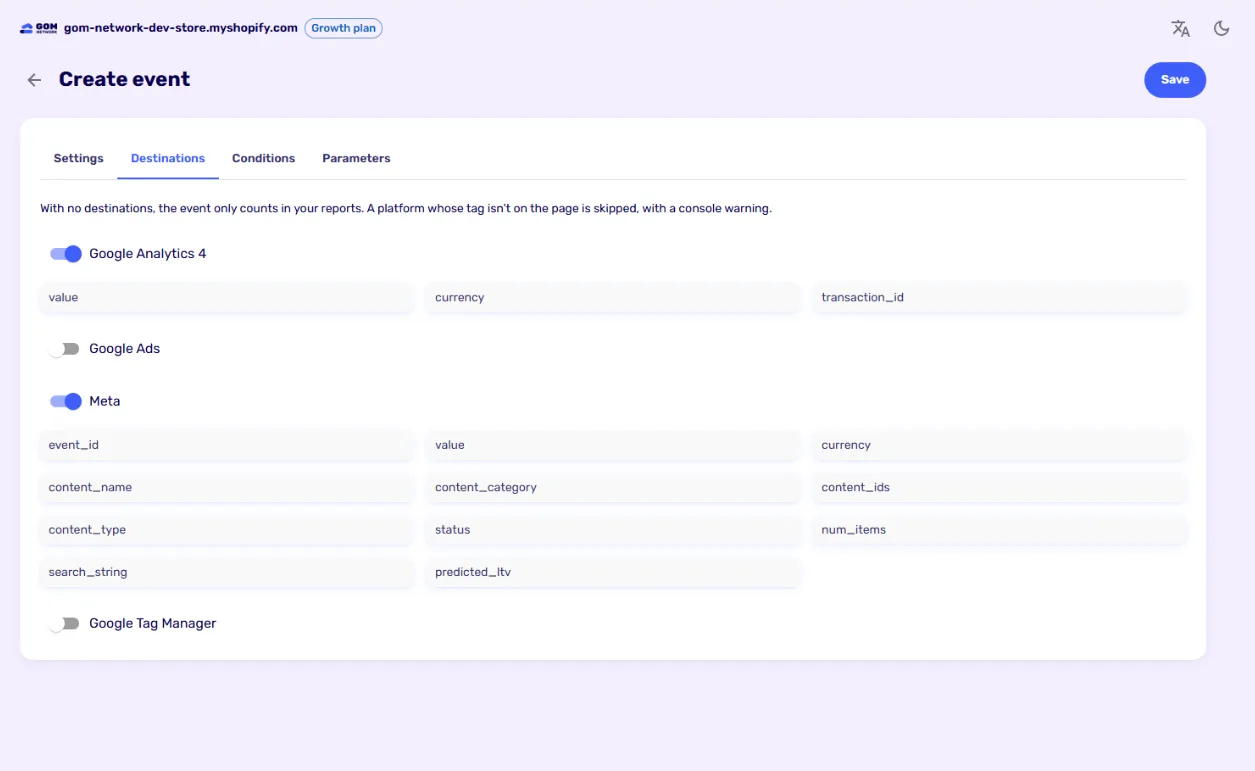
| Destinations | Which platforms it goes to and with which data for each. |
| Conditions | When it counts: by page, campaign, language, device, form and more. |
| Parameters | Extra data sent with the event, with variables such as the page or the campaign. |
When it fires#
- On the store: view a page, scroll down the page, try to send or send a form, open or close the widget, send the widget’s form, go to WhatsApp and click an element (from Plus, with a CSS selector such as
.buy-button). - Purchase (reports only): view a product, add to cart, start checkout and complete a purchase. They’re recorded in your reports but aren’t sent to Google or Meta.
How many times: every time, once per session, several per session or once per visitor.
Consent#
Events only go out with the visitor’s permission: Google Analytics and Tag Manager with analytics consent; Google Ads and Meta with marketing consent. Tags load when the visitor accepts.
Check they arrive#
- In Google Analytics, watch Reports → Realtime while you send a test form.
- In Meta, use Test events in Events Manager.
- If a platform’s tag isn’t on the page, the event is skipped and a warning shows in the browser console.
Didn't find what you were looking for? Write to us at info@gomnetwork.com.