
GOM Tools for Shopify
Forms
Forms with your own fields and styles, spam filtering without captchas, email alerts and contacts stored encrypted.
On this page
Each form has its own fields, thank-you message and look. What a visitor sends is stored encrypted in the app and creates or updates their contact.
Create a form#
In Forms, click New form. It starts with name and email; add what you need. The editor has six tabs:
| Tab | What you set up |
|---|---|
| Settings | Name (only for you), title, button text, status, spam filter and whether it is a primary conversion. |
| Fields | The form fields, their type and their order. |
| After sending | Show a message or take the visitor to another page, such as /pages/thank-you. |
| Email you about every submission, with what the person wrote. | |
| Contact | Which field is the contact’s email, name or phone. |
| Styles | The global form styles, styles just for this form or none. |
Fields#
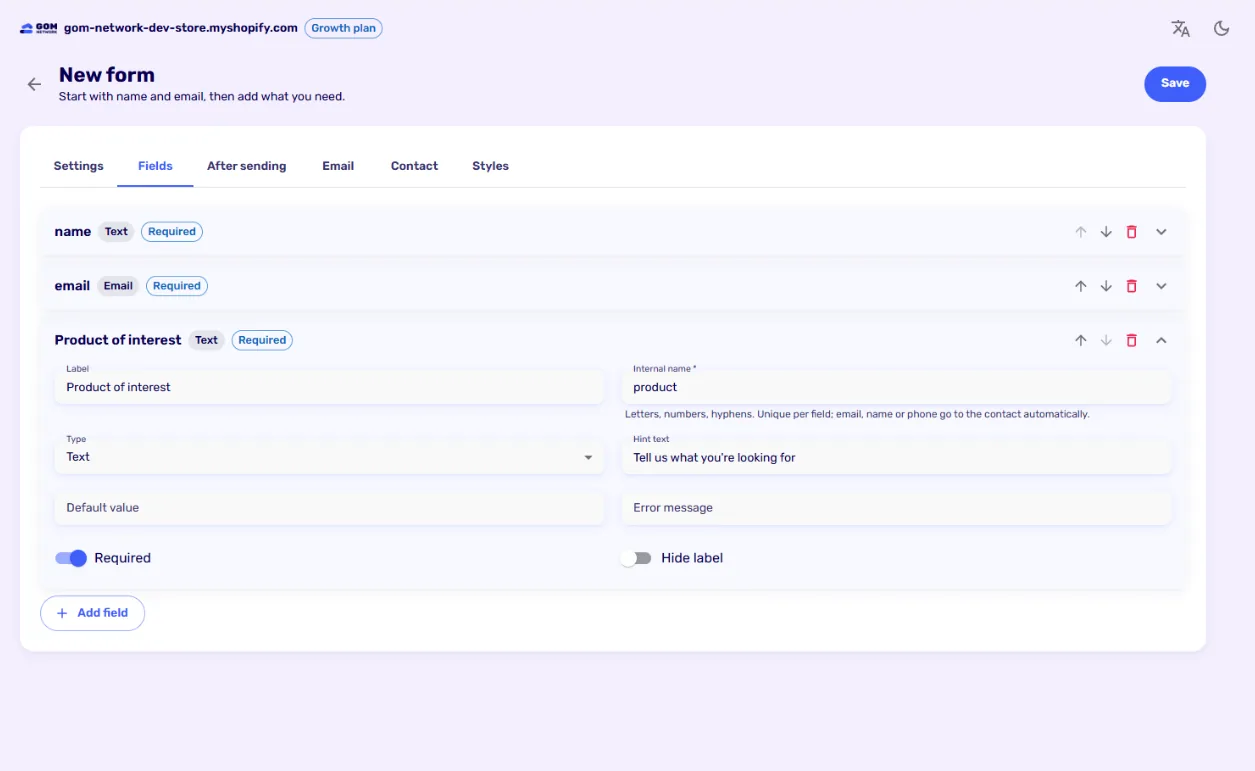
Field types: text, long text, email, phone, number, list, single choice and checkboxes. The internal name identifies the field: if it is called email, name or phone, it goes to the contact automatically. Reorder fields with the arrows.
Spam filter and primary conversion#
- Spam filter: discards bot submissions without bothering your customers, with no captcha. What it discards stays in Discarded submissions for 30 days, so you can check it was not a person.
- Primary conversion: when off, a later purchase stays credited to the campaign that brought the person, which suits a newsletter. Turn it on if this form is the campaign’s goal: sending it closes the attribution. See Attribution.
Show it on your store#
There are two ways:
- On a page: in the theme editor, add the GOM Tools form block to a section and enter the Form ID shown in the Forms list.
- Inside a widget: in the widget’s WhatsApp tab, turn on the welcome panel and pick the form. Sending it offers to open WhatsApp.
A form without an email field does not create contacts: the email is what identifies them. Its submissions are stored anyway.
Email alerts#
In the Email tab, turn on Email me about every submission and enter the recipient. It is a simple alert with what the person wrote. Custom emails, with your subject, text and sender, are coming in a future version.
Styles#
Global form styles are edited in Form styles and apply to every form that uses them. Each form can have its own from its Styles tab.
Didn't find what you were looking for? Write to us at info@gomnetwork.com.